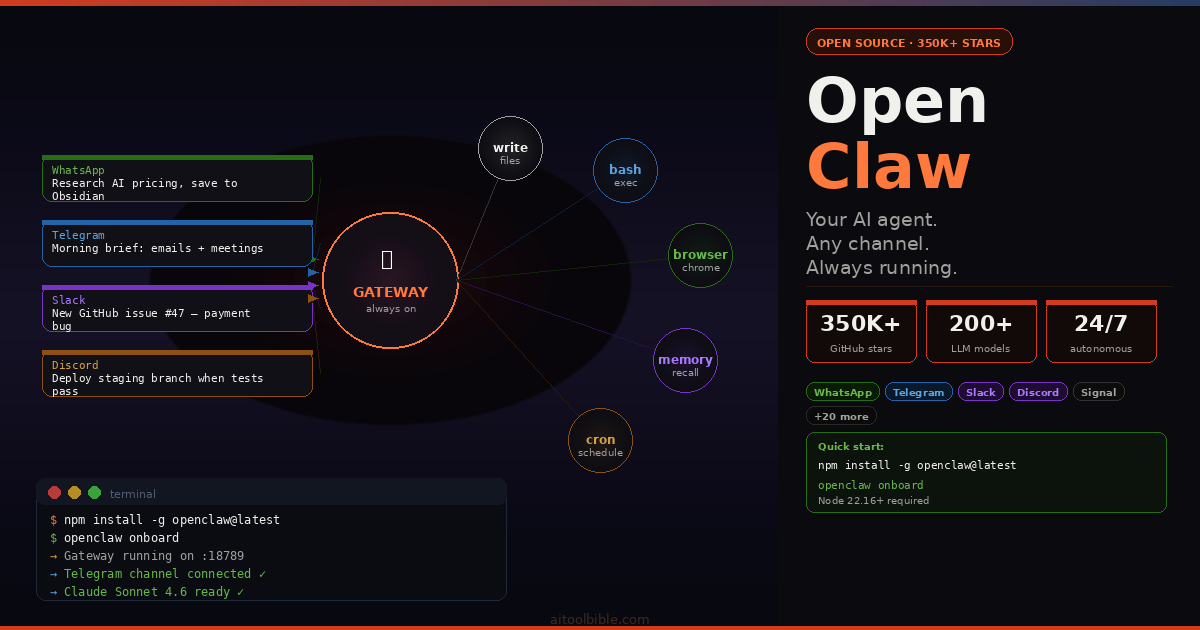
In November 2025, Austrian developer Peter Steinberger pushed a project to GitHub. He called it Clawdbot. Within 72 hours it had 60,000 stars. Within 60 days it had 250,000. NVIDIA CEO Jensen Huang stood at the Morgan Stanley Technology Conference in March 2026 and called it "probably the single most important release of software, probably ever." By April 2026, the project — now renamed OpenClaw — had become one of the fastest-growing open-source repositories in the history of GitHub.
This is not a normal AI tool story. OpenClaw is not a chatbot. It does not live in a browser tab you open when you need to ask a question. It runs continuously in the background of your computer, watches for messages from you on WhatsApp or Telegram or Discord, and when you send one, it does not just reply — it takes action. It sends emails. It runs scripts. It controls your browser. It reads your calendar and writes to your notes app. It checks your GitHub issues while you sleep and posts summaries to Slack before you wake up.
This guide will explain exactly how it does all of that. By the end, you will understand every major component of OpenClaw, how they connect to each other, and what actually happens between the moment you type a message and the moment your assistant responds and takes action.
What OpenClaw actually is
The simplest accurate description is this: OpenClaw is an AI agent that runs on your machine and takes instructions from your messaging apps.
Most AI tools you have used before — ChatGPT, Claude, Gemini — are reactive. You open a website, you type a question, you get an answer. When you close the tab, nothing continues. The AI has no memory of the conversation next time you open it (unless you are in the same thread), no awareness of your files or calendar, no ability to do anything unless you are actively there asking it to.
OpenClaw breaks all three of those constraints simultaneously. It runs all the time, even when you are not at your computer. It maintains persistent memory across all your conversations. And instead of just generating text responses, it can execute real actions in the world — running shell commands, controlling a browser, reading and writing files, sending messages, calling APIs, and spawning other AI agents to handle tasks in parallel.
The AI model itself — Claude, GPT, Gemini, or any of 200 others — is not the product here. OpenClaw is the infrastructure that wraps around whatever model you choose and turns it from a passive question-answering system into an active, always-on agent that lives on your hardware and works for you.
"OpenClaw is not an AI. It is the system that makes an AI actually useful. The model generates the thinking. OpenClaw makes that thinking do something." — from the official OpenClaw documentation
The five core components — and how they fit together
Before going into the details of how OpenClaw works, it helps to have a clear map of its five main parts. Think of them as layers in a system, each one serving the one above it.
- The Gateway — the always-on control plane. The central nervous system of OpenClaw. It runs as a background process on your machine, handling all incoming messages, routing them to the right agent, managing sessions, and dispatching tool calls.
- Channels — the messaging apps you already use. WhatsApp, Telegram, Slack, Discord, Signal, iMessage and 20+ more. These are how you talk to your agent.
- The Workspace — a folder of text files that defines who your agent is, what it knows about you, and how it should behave.
- Skills — instruction manuals written in plain text that teach your agent how to accomplish specific tasks. Installing a skill for Gmail teaches the agent the steps involved in reading and sending email.
- Tools — the actual capabilities that allow your agent to do things. The browser tool, the shell execution tool, the file write tool. Skills explain the what; Tools provide the how.
Understanding the difference between Skills and Tools is the single most important conceptual distinction in OpenClaw, and the one most beginners confuse. We will spend time on both.
The Gateway: the heart of OpenClaw
When you install OpenClaw and run openclaw onboard for the first time, the onboarding process installs a background daemon — a process that starts automatically when your machine boots and keeps running in the background indefinitely. This daemon is the Gateway.
The Gateway is a local HTTP and WebSocket server that runs on port 18789 by default. It is the single central process that manages everything. Every message that comes in from any of your connected messaging apps arrives at the Gateway first. Every tool call that your agent needs to execute passes through the Gateway. Every piece of conversation history and memory that OpenClaw writes to disk goes through the Gateway.
You can think of the Gateway as an airport control tower. Aircraft (messages, tool calls, responses) are constantly moving around it. The control tower does not fly the planes — that is the AI model's job. But without the control tower, nothing would know where to land, which runway to use, or how to avoid colliding with other traffic.
The Gateway does five things specifically:
- Authentication — when you first run
openclaw gateway start, it generates a bootstrap token. Only clients that have authenticated with this token can issue commands to the Gateway. This prevents your agent from becoming an open relay that anyone on your network could send instructions to. - Channel routing — messages from WhatsApp, Telegram, Slack and any other connected app all arrive at the Gateway, which routes them to the correct agent session based on which channel they came from, who sent them, and how you have configured the routing rules.
- Session management — the Gateway maintains the conversation state for every active session, including the full history of what has been said, what tools have been called, and what results were returned. Each session is persisted as a JSONL file so context survives restarts.
- Tool dispatch — when the AI model decides it needs to take an action (run a bash command, open a browser, write a file), it outputs a tool call. The Gateway intercepts that call, checks whether that tool is permitted in this session's policy, executes it, and returns the result back to the model.
- Config watching — the Gateway continuously monitors its config file and applies valid changes immediately, without requiring a restart.
The Gateway is deliberately lightweight — the official documentation notes it can comfortably run on a Raspberry Pi. The heavy computation (AI model inference) is offloaded entirely to external API providers or local model servers. The Gateway is just the orchestration layer.
Channels: talking to your agent
Channels are the messaging apps through which you interact with OpenClaw. The current list of supported channels is extensive: WhatsApp, Telegram, Slack, Discord, Signal, iMessage (via BlueBubbles), Google Chat, Microsoft Teams, Matrix, IRC, LINE, Mattermost, WeChat, Twitch and more — over 20 platforms in total.
The key insight about channels is that you do not have to use a new app. This is intentional design. Most AI tools require you to go somewhere new — open a website, use their app. OpenClaw meets you where you already are. If you spend your day in Slack, your AI agent lives in Slack. If you use WhatsApp for everything, your agent lives there.
Setting up a channel involves connecting your messaging account to the Gateway. For Telegram, you create a Telegram bot via BotFather and give OpenClaw the bot token. For Slack, you create a Slack app in your workspace and grant it the necessary permissions. For WhatsApp, you scan a QR code that links your WhatsApp account to the Gateway (similar to WhatsApp Web). Once a channel is connected, every message you send to that bot or account arrives at the Gateway for processing.
You can connect multiple channels simultaneously, and you can route different channels to different agents. A personal Telegram account might route to one workspace. A team Slack channel might route to a completely separate agent with different skills and different permissions. The Gateway manages all of this through a single running process.
The Workspace: your agent's personality and memory
Every OpenClaw agent has a workspace — a folder on your machine that contains a set of plain text Markdown files. These files are what make your agent yours rather than a generic AI assistant. They are loaded fresh at the start of every conversation, giving the agent its personality, its knowledge about you, its instructions, and its memory of past conversations.
The four most important workspace files are:
SOUL.md — defines the agent's identity, tone and values. This is where you write the personality of your assistant. A SOUL.md might say: "You are a concise, direct assistant. You never pad responses with filler. You are proactive — if you notice something the user would want to know, you mention it even if they did not ask." The model reads this file at the start of every session and adopts this character throughout the conversation.
AGENTS.md — describes the agent's role and responsibilities. While SOUL.md covers personality, AGENTS.md covers purpose. A developer might write in AGENTS.md: "You are a DevOps assistant. Your primary responsibilities are monitoring build pipelines, triaging GitHub issues by severity, and maintaining deployment checklists. When uncertain about a deployment decision, ask rather than proceed."
USER.md — personal context about you. Your timezone, your preferences, your working patterns, the names of your projects and the people you work with. The agent reads USER.md so it can personalize its responses without you having to re-explain your situation in every conversation. A USER.md might include: "I work in GMT+1. I prefer bullet points over paragraphs for summaries. My main project is a PHP e-commerce site hosted on a cPanel server. My team uses Slack in the #dev channel."
MEMORY.md — long-term memory that persists across sessions. When you tell the agent something it should remember permanently ("my API key for the weather service is X" or "always check with me before deleting any files"), it can write to MEMORY.md. On the next session, it reads this file and the information is available again without you having to repeat it. This is the mechanism that makes OpenClaw feel like a persistent assistant rather than a stateless chatbot.
The file-based design of the workspace is deliberate. Because everything is plain text, you can edit it directly, put it under version control, back it up, and reason about it without any proprietary tooling. You can see exactly what your agent knows and change it at any time.
Tools: what your agent can actually do
Tools are OpenClaw's capabilities — the actual mechanisms through which the agent can take action in the world. When the AI model decides it needs to do something (rather than just say something), it generates a tool call. The Gateway intercepts that call, executes the relevant tool, and feeds the result back to the model.
The most important built-in tools are:
bash / exec — shell execution. Allows the agent to run any shell command on your machine. This is the most powerful tool in OpenClaw and the most security-sensitive. With exec enabled, the agent can install packages, run scripts, start and stop services, and do essentially anything you can do from a terminal. The official documentation recommends running exec only for your main personal session and enabling sandboxing (Docker isolation) for any session that communicates with external parties.
browser — browser automation via Chrome DevTools Protocol. The agent can open URLs, click buttons, fill in forms, extract text from pages, take screenshots and interact with web applications as if it were a human user. Useful for research, data gathering, and automating repetitive web-based tasks.
read / write / edit — filesystem access. The agent can read files from your machine (to get context, review code, check logs), write new files, and edit existing ones. This is how OpenClaw can update your notes, modify configuration files, or save research to disk.
cron — scheduled task execution. Allows the agent to set up recurring jobs that run at specified times. This is what makes OpenClaw truly proactive — the agent can schedule its own future tasks without you being present.
memory — semantic search over past conversations. The agent can search its conversation history for semantically related content — so if you mentioned your server's hostname six weeks ago, and a new conversation needs that information, the memory tool can retrieve it.
canvas — a live visual workspace. The agent can push HTML to a browser window that updates in real time. Useful for dashboards, diagrams and interactive interfaces that the agent builds for you.
The critical point about tools: installing a skill does not grant its tools automatically. Tools must be explicitly enabled in your configuration. This is the safety model — a skill that teaches the agent how to interact with Gmail requires explicit exec permission before it can run any Gmail-related commands. You control the permissions; the skills just provide the instructions.
Skills: the instruction manuals
If Tools are the capabilities, Skills are the knowledge. A skill is a text file (SKILL.md) that teaches the agent when and how to use a combination of tools to accomplish a specific category of task.
Think of it like this: the exec tool is the ability to run shell commands. The GitHub skill is the knowledge of which commands to run, in which order, to accomplish GitHub-related tasks — fetching issues, creating pull requests, reading CI results. Without the GitHub skill, an agent with exec enabled could theoretically interact with GitHub, but it would have to figure out how from scratch every time. With the skill installed, that knowledge is pre-loaded and the agent uses it correctly immediately.
Skills are installed from ClawHub (clawhub.ai), the official public skills registry, or created locally in your workspace. The full set of official skills covers: notes (Obsidian, Notion, Bear, Apple Notes), email (Gmail/Google Workspace, IMAP), calendar (Google Calendar, Apple Calendar), task management (Things 3, Apple Reminders, Trello), development (GitHub, code execution), communication (Slack, Discord), smart home, music, web automation and many more.
There is an important security note about third-party skills from ClawHub. The OpenClaw community has documented cases of malicious skills on the registry that performed data exfiltration or prompt injection. The project's own maintainers have warned that if you cannot understand what a skill's code does, you should not install it. The safe practice is to read every skill file before installing, prefer verified official skills, and use sandboxed execution for any agent that handles content from untrusted sources.
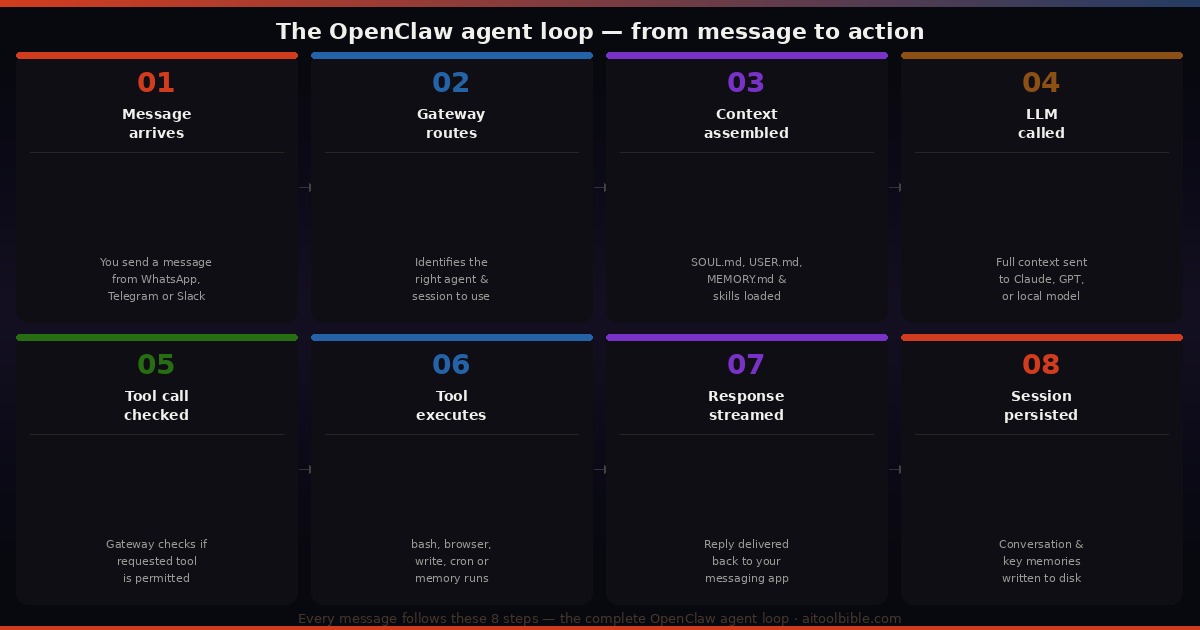
How it all works together: the agent loop
Now that you understand each component, here is the complete flow of what happens every time you send a message to your OpenClaw agent:
- Message arrives at the Gateway — you send a WhatsApp message, a Telegram message, or type into the WebChat UI. The channel adapter receives it and forwards it to the Gateway daemon running on your machine.
- Gateway routes to a session — the Gateway looks at which channel the message came from, who sent it, and the routing rules you have configured. It determines which agent and workspace should handle this conversation, and either resumes an existing session or starts a new one.
- Context assembly — the agent runtime loads the session's workspace. It reads SOUL.md, AGENTS.md, USER.md, and MEMORY.md. It identifies which skills are relevant to this session and injects them into the context. It also runs a semantic search over conversation history and retrieves any past exchanges that are relevant to the current message. All of this is assembled into the system prompt.
- LLM call — the assembled context plus your message is sent to your configured AI model — Claude, GPT, Gemini, or a locally running model via Ollama. The model reads everything and generates a response.
- Tool call interception — if the model decides it needs to take action (run a command, open a browser, write a file), it outputs a structured tool call rather than a text response. The Gateway intercepts this, checks whether the tool is permitted in this session's policy, and executes it.
- Result feedback — the tool's output (the command result, the browser screenshot, the file contents) is fed back to the model. The model incorporates this into its response and either calls another tool or generates a final reply.
- Response delivered — the final text response streams back through the Gateway to the originating channel. You receive it in WhatsApp, Telegram, or wherever you sent the original message.
- Persistence — the conversation is written to the session's JSONL file. Important information that should be remembered long-term is written to MEMORY.md. The cycle is complete.
This loop — receive, route, context, LLM, tools, respond, persist — is the agent loop. Every single interaction follows this pattern.
Real-world example 1: the daily briefing
One of the most popular OpenClaw workflows, described by multiple users in the community, is an automated daily briefing delivered every morning before you start work. Here is exactly how it works:
In your configuration, you set up a cron job — a scheduled task — that triggers at 7:00 AM. The cron tool fires and sends a message to your agent: "Generate the daily briefing for today."
The agent wakes up (the Gateway has been running overnight), assembles context from your workspace, and starts executing. It calls the GitHub skill to check for any new issues or pull request comments on your repositories. It calls the Google Workspace skill to read the first 20 unread emails in your Gmail. It calls the calendar skill to get today's meetings and their details. It calls a web search tool to get weather and any relevant news.
Each of these calls goes through the tool dispatch system in the Gateway — the agent requests an exec command to query the GitHub API, the Gateway checks that exec is permitted in this session, executes the command, and returns the JSON result. The agent reads the result, incorporates it into its growing response, and moves to the next tool call.
Once all the data is gathered, the model composes a morning briefing: three bullet points of priority emails, today's meetings with times and attendees, two open GitHub issues that need attention, weather, and one news item. This gets delivered as a Telegram message to your phone at 7:03 AM — before you have opened a laptop.
You did not ask for any of this. You did not press any buttons. The cron job ran, the agent executed a multi-step workflow across four different data sources, and the result appeared in your pocket. This is what "autonomous" actually means in practice.
Real-world example 2: research and filing from your phone
You are walking between meetings and you think of something you want researched and saved to your notes. You open WhatsApp and type: "Research the current pricing models for AI image generation APIs — Midjourney, FLUX, Ideogram and Stability. Compare them in a table and save it to my Obsidian vault under Research/AI-Pricing."
The message arrives at the Gateway via the WhatsApp channel. Your workspace context is loaded — the agent knows from USER.md that your Obsidian vault is at ~/Documents/Obsidian and that you prefer tables for comparisons.
The agent makes four sequential browser tool calls, opening the pricing pages for each service and extracting the relevant information. It then uses the write tool to create a new Markdown file at the specified path in your vault with a formatted table of the pricing data, including the date of research at the top.
It replies to you in WhatsApp: "Done. Saved to Research/AI-Pricing.md. Midjourney is the most expensive at £16/month minimum, FLUX is cheapest per-image at £0.05, Ideogram has the best free tier at 10 images/day."
Four tool calls, two different tools (browser and write), coordinated across a multi-step workflow, initiated from a WhatsApp message sent while you were between meetings. Total elapsed time: approximately 45 seconds.
Real-world example 3: multi-agent parallel work
For more complex tasks, OpenClaw can spawn multiple sub-agents that work in parallel. Say you ask: "Give me a competitive analysis of the top 5 AI writing tools — Jasper, Copy.ai, Writesonic, Rytr and Sudowrite. For each one: check their current pricing page, find three recent reviews on Reddit from the last 90 days, and summarise the key pros and cons. Then write a 500-word comparison article and save it to my Dropbox."
Rather than doing this sequentially (which would take many minutes), the agent can use the sessions tool to spawn five sub-agents, one for each tool. Each sub-agent gets its own isolated session in the Gateway, with its own context and tool permissions. All five run simultaneously — each one browsing pricing pages and searching Reddit in parallel.
The parent agent waits, polling for sub-agent status via the sessions API. As results come in, it assembles them into a structured dataset. Once all five are complete, it synthesises the research into a comparison article, saves it to Dropbox via the write tool, and reports back to you: "Comparison article saved to Dropbox/Research/AI-Writing-Tools.md. Jasper remains the most feature-complete but most expensive. Rytr offers the best value for solo creators."
This workflow — one orchestrating agent spawning multiple specialised research agents, collecting results, and synthesising them — is possible because the Gateway manages the full session tree, tracking parent/child relationships and routing results back through the correct sessions.
Real-world example 4: proactive monitoring
OpenClaw's cron capability combined with messaging integrations enables workflows that run without any input from you at all. A developer running a small side project might configure the following:
Every hour, the agent checks the project's GitHub repository for new issues. If a new issue is found, it reads it, checks the codebase for the relevant file or function mentioned, assesses the severity (bug vs feature request vs question), and sends a formatted Slack message to the #dev channel: "New GitHub issue #47 — possible bug in the payment form validation. Severity: Medium. Relevant file: /src/components/CheckoutForm.php. No similar issues in backlog."
None of this requires the developer to be at their computer. The cron tool fires the hourly check, the GitHub skill handles the API calls, the read tool pulls the relevant code file for context, the model assesses severity, and the Slack channel integration delivers the notification. The developer wakes up in the morning to a full picture of everything that came in overnight, with context already assembled.
How to get started: the practical steps
Getting OpenClaw running requires Node.js version 22.16 or higher (version 24 is recommended). The installation is a single command:
npm install -g openclaw@latest
openclaw onboard
The openclaw onboard command is an interactive setup wizard that walks you through each step: installing the Gateway daemon, configuring your first workspace, connecting your first channel, and choosing your AI model provider. It is the recommended starting point for all new users.
During onboarding you will need: an API key from at least one AI model provider (Anthropic, OpenAI or Google are the most common choices; Anthropic's Claude Sonnet 4.6 is consistently recommended by the community as the best balance of quality and cost for everyday assistant tasks), and credentials for your chosen messaging channel (a Telegram bot token is the easiest starting point).
Once onboarding is complete, the Gateway runs as a background service. You will find a Control UI at http://localhost:18789 where you can monitor sessions, view conversation history, install skills, and configure channels. Most day-to-day interaction happens through your messaging app, but the Control UI is useful for initial setup and debugging.
A note on security
OpenClaw gives an AI model real access to your machine and your accounts. That is also what makes it powerful. You should go in with clear eyes about what that means.
The most important practices for safe use: run OpenClaw inside a virtual machine or on a dedicated low-cost server rather than your main laptop; never expose port 18789 to the public internet — use SSH tunnelling or Tailscale for remote access; read every ClawHub skill file before installing it (malicious skills have been documented in the wild); enable Docker sandboxing for any agent session that receives messages from people other than yourself; and never give the agent permissions it does not need for the tasks you have configured it for.
The project's own maintainer put it plainly on the community Discord: "If you can't understand how to run a command line, this is far too dangerous of a project for you to use safely." That is honest advice. OpenClaw rewards careful, deliberate setup. Used thoughtfully, it is extraordinary. Used carelessly, it is a significant attack surface.
Where OpenClaw fits in the broader AI landscape
The question developers often ask is: "I already use Claude Code / Cursor / ChatGPT — do I need OpenClaw?"
The honest answer is that they solve different problems. Claude Code and Cursor are development tools — reactive, session-based, optimised for writing and understanding code inside a project context. You invoke them when you need them and they stop when you close them.
OpenClaw is infrastructure — always-on, proactive, multi-channel, and general purpose. It excels at the things that happen outside of active development sessions: monitoring, notifications, scheduling, cross-app automation, and tasks you want handled while you are not at your desk.
Many experienced developers use both: Claude Code or Cursor during active development sessions, and OpenClaw for the background orchestration, monitoring and routine task automation that should not require their attention.
The bigger picture
OpenClaw matters beyond its features. It represents a meaningful shift in how personal AI works. The dominant model up to 2025 was cloud-hosted, subscription-based AI that you visited. OpenClaw inverts this: you own the agent, it runs on your hardware, it works with any model you choose, and it lives in the communication tools that are already part of your life.
The fact that it reached 250,000 GitHub stars in 60 days is not just a curiosity about viral growth. It reflects something genuine — a large number of developers recognised immediately that this was a different kind of tool. Not another chatbot, but an agent architecture that finally made autonomous AI assistance practical for individuals without engineering teams or cloud infrastructure budgets.
You install it once. You configure it to know who you are, what you care about, and what you need it to do. And then it runs — quietly, continuously, in the background of your machine — handling the routine, the repetitive and the monitored, so that your attention can go where it actually matters.